Zach's Runway
A small aircraft. Quite a lot to think about.

The runway is only the beginning. Zach’s Runway gives you an aircraft to assemble and a landscape to explore, but the satisfying part is connecting a small adjustment to what the plane does next.
Source · Airscape Works ↗The game opens on its platform in a new tab. That service’s terms and privacy policy apply.Our pick for a break that needs a little patience
Give this one some attention. We recommend it when you want a small learning project, because changing how you handle an approach can provide a clearer sense of progress than simply unlocking another aircraft part.
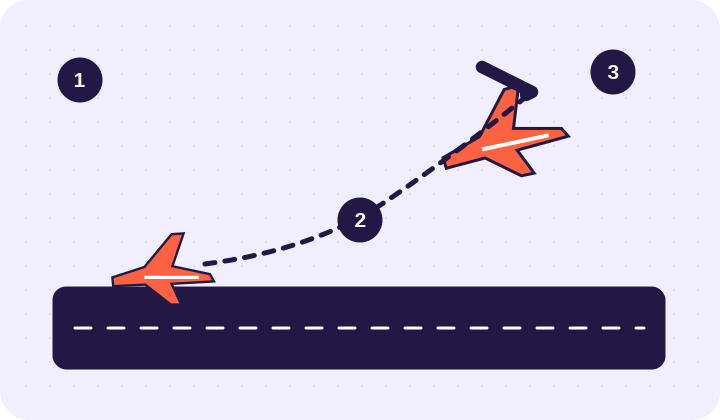 Editorial diagram, not a gameplay screenshot
Make the first flight deliberately ordinary
Keep the starting aircraft for now. Follow the opening lessons with assistance enabled, find the power control before making a turn, and aim to complete one uncomplicated flight before changing parts in the hangar.
- Leave flying help on for the opening lesson.
- Find power, pitch and the pause control.
- Try one straight takeoff before a sightseeing trip.
- Devices
- Computer, phone and tablet; controller support is listed.
- Controls
- Arrow keys and power controls, or the on-screen stick.
- Session
- The publisher suggests 2–10 minutes per flight.
- Cost
- Free browser edition.
- Account
- No account needed to begin; optional account features.
The controls, within reach
- Arrow keys
- Pitch and roll; the default down arrow raises the nose.
- W / S
- Increase or decrease power.
- A / D
- Use the rudder.
- Space / P
- Brake / pause.
- Touch controls
- Use the left stick and right power lever; other cockpit buttons sit nearby.
Separate pointing the nose from adding power
Change one thing first. When a flight starts to feel messy, try holding your direction steady while adjusting power, rather than moving every control at once and losing track of which input caused the result.
The camera matters too. Pick a view that lets you judge the runway comfortably, then stay with it for several approaches so the picture becomes familiar instead of changing your reference point during every difficult moment.
Use the hangar as an experiment
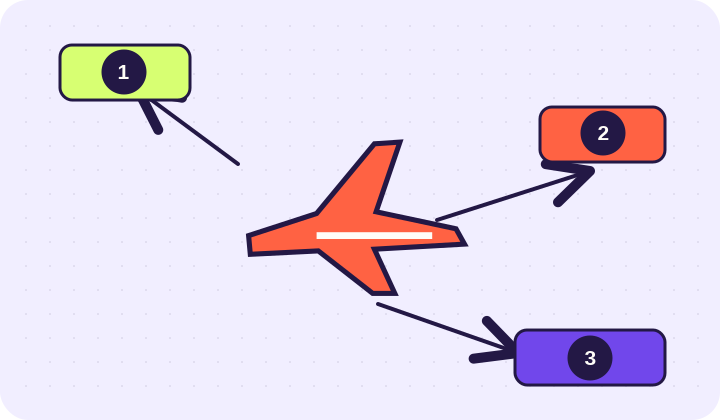
More speed is not automatically more useful. Before changing a wing, engine or body, choose a question you want to answer, such as whether this build feels easier to turn or easier to bring back toward the runway.
Keep the comparison fair. Make one change and repeat a similar flight, because replacing several parts together may leave you with a very different aircraft without a clear idea of what you actually preferred about it.
Give the return trip its own job
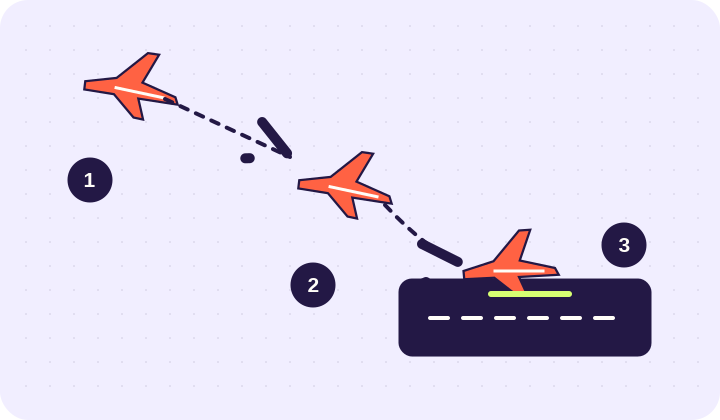
A landing deserves a plan. Rather than treating it as the last few seconds of sightseeing, use a whole attempt to find the runway early, settle your view and approach without an extra detour.
Assistance is a useful starting point. Keep it while learning the layout and controls, then change the help level when you want a different challenge instead of removing it merely because an easier flight feels less legitimate.
When a run goes sideways
Pulling harder whenever the aircraft feels wrong
Reduce the number of corrections. Try a brief, small input and watch the response before doing more, so you can distinguish a useful adjustment from another movement that merely adds confusion.
Changing the build after every unsuccessful approach
Give one setup another chance. A new aircraft part also changes your reference point, so repeat an approach with the same build before deciding that the equipment caused the problem.
Looking for a control while already close to the ground
Use the pause button first. Locate the control you need and return with a clear next action, rather than scanning the keyboard while also trying to judge the runway through the cockpit view.
Does it fit your break?
You might like it if…
Choose it if you enjoy small adjustments. It suits someone who wants to learn a readable set of controls and compare the effect of different choices over several flights, rather than rush through a queue of unrelated tasks.
Maybe skip it when…
Skip it when your attention keeps wandering. A flight can ask you to watch direction and speed together, so a frequently interrupted session may feel more frustrating than a round of Yummy Cupcake.
- The browser needs working 3D graphics; older hardware or disabled graphics acceleration can affect loading and smoothness.
- The publisher describes optional account features and local progress. Check those settings before relying on another device to hold your saved flight history.
- This guide covers a browser game. Its advice is about learning the game, not operating a real aircraft.
A few things worth asking
Can I start without registering?
Yes, the publisher says you can. Start with a guest session if you only want to try the flying, and inspect the optional account features later if keeping progress across devices matters to you.
Which arrow raises the nose?
Down is the default choice. The game also lets you change the stick direction, so check that setting if the aircraft reacts opposite to the movement you expected from another flying game.
Should I switch off assistance straight away?
There is no need to rush. Learn the view, power control and route first, then reduce assistance when you want to practise handling the plane rather than spending another attempt finding the correct button.